Showing posts with label Featured. Show all posts
Ubuntu 19.04, codenamed "Disco Dingo", has been released (and upgrading is easier than you think). I've been on Ubuntu 19.04 since its first Alpha, and this has been a rock solid release as far I'm concerned. Changes in Ubuntu 19.04 are more evolutionary though, but availability of the latest Linux Kernel version 5.0 is significant.

ubuntu 19.04 things to do after install

Unity is long gone and Ubuntu 19.04 is indistinguishably GNOME 3.x now, which is not necessarily a bad thing. Yes, I know, there are many who still swear by the simplicity of Unity desktop. But I'm an outlier here, I liked both Unity and GNOME 3.x even in their very early avatars. When I wrote this review of GNOME Shell desktop almost 8 years ago, I knew it was destined for greatness. Ubuntu 19.04 "Disco Dingo" runs GNOME 3.32.0.


We'll discuss more about GNOME 3.x and Ubuntu 19.04 in the official review. Let's get down to brass tacks. A step-by-step guide into things I did after installing Ubuntu 19.04 "Disco Dingo". 

1. Make sure your system is up-to-date

Do a full system update. Fire up your Software Updater and check for updates.

how to update ubuntu 19.04

OR
via Terminal, this is my preferred way to update Ubuntu. Just one command.

sudo apt update && sudo apt dist-upgrade

Enter password when prompted and let the system do the rest.

2. Install GNOME Tweaks

GNOME Tweaks is non-negotiable.

things to do after installing ubuntu 19.04

GNOME Tweaks is an app the lets you tweak little things in GNOME based OSes that are otherwise hidden behind menus. If you are on Ubuntu 19.04, Tweaks is a must. Honestly, I don't remember if it was installed as a default. But here you install it anyway, Apt-URL will prompt you if the app already exists.

Search for Gnome Tweaks in Ubuntu Software Center. OR simply CLICK HERE to go straight to the app in Software Center. OR even better, copy-paste this command in Terminal (keyboard shortcut: CTRL+ALT+T).

sudo apt install gnome-tweaks

3. Enable MP3/MP4/AVI Playback, Adobe Flash etc.

You do have an option to install most of the 'restricted-extras' while installing the OS itself now, but if you are not-sure you've ticked all the right boxes, just run the following command in Terminal.

sudo apt install ubuntu-restricted-extras

OR

You can install it straight from the Ubuntu Software Center by CLICKING HERE.

4. Display Date/Battery Percentage on Top Panel  

The screenshot, I hope, is self explanatory.

things to do after installing ubuntu 19.04

If you have GNOME Tweaks installed, this is easily done. Open GNOME tweaks, goto 'Top Bar' sidemenu and enable/disable what you need.

5. Enable 'Click to Minimize' on Ubuntu Dock

Honestly, I don't have a clue why this is disabled by default. You intuitively expect the apps shortcuts on Ubuntu dock to 'minimize' when you click on it (at least I do).

In fact, the feature is already there, all you need to do is to switch it ON. Do this is Terminal.

gsettings set org.gnome.shell.extensions.dash-to-dock click-action 'minimize'

That's it. Now if you didn't find the 'click to minimize' feature useful, you can always revert Dock settings back to its original state, by copy-pasting the following command in Terminal app.

gsettings reset org.gnome.shell.extensions.dash-to-dock click-action

6. Pin/Unpin Apps from Launcher

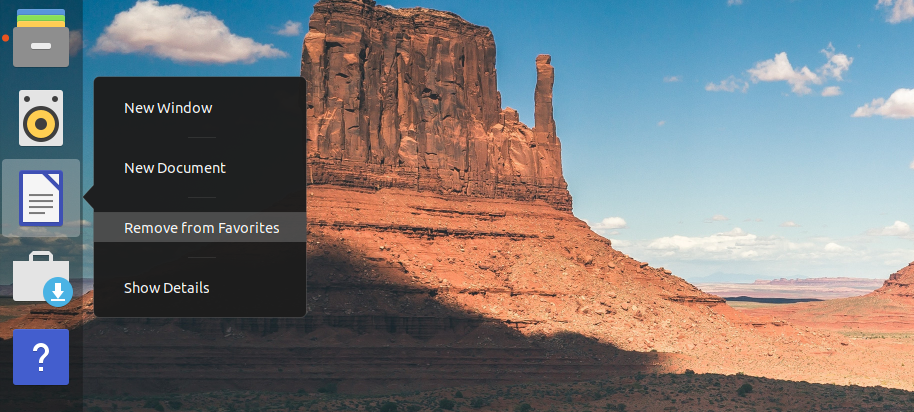
There are a bunch of apps that are pinned to your Ubuntu launcher by default.

things to do after ubuntu 19.04
 
For example, I almost never use the 'Help' app or the 'Amazon' shortcut preloaded on launcher. But I would prefer a shortcut to Terminal app instead. Right-click on your preferred app on the launcher, and add-to/remove-from favorites as you please.

7. Enable GNOME Shell Exetensions Support

Extensions are an integral part of GNOME desktop.

It's a real shame that one has to go through all these for such a basic yet important feature. From the default Firefox browser, when you visit GNOME Extensions page, you will notice the warning message on top describing the unavailability of Extensions support.
Now for the second part, you need to install the host connector on Ubuntu.
sudo apt install chrome-gnome-shell
  • Done. Don't mind the "chrome" in 'chrome-gnome-shell', it works with all major browsers, provided you've the correct browser add-on installed. 
  • You can now visit GNOME Extensions page and install extensions as you wish with ease. (if it didn't work immediately, a system restart will clear things up). 
Extensions are such an integral part of GNOME Desktop experience, can't understand why this is not a system default in Ubuntu 19.04. Hope future releases of Ubuntu will have this figured out.

8. My Favourite 5 GNOME Shell Extensions for Ubuntu 19.04


9. Remove Trash Icon from Desktop

Annoyed by the permanent presence of Home and Trash icons in the desktop? You are not alone. Luckily, there's an extension for that!
Done. Now, access the settings and enable/disable icons as you please. 


Extension settings can be accessed directly from the extension home page (notice the small wrench icon near the ON/OFF toggle). OR you can use the Extensions addon like in the screenshot above.

10. Enable/Disable Two Finger Scrolling

As you must've noticed, two-finger scrolling is a system default for sometime now. 

things to do after installing ubuntu cosmic
 
One of my laptops act strangely when two-finger scrolling is on. You can easily disable two-finger scrolling and enable old school edge-scrolling in 'Settings'.  Settings > Mouse and Touchpad

Quicktip: You can go straight to submenus by simply searching for it in GNOME's universal search bar.

ubuntu 19.04 disco

Take for example the screenshot above, where I triggered the GNOME menu by hitting Super(Windows) key, and simply searched for 'mouse' settings. The first result will take me directly to the 'Settings' submenu for 'Mouse and Touchpad' that we saw earlier. Easy right? More examples will follow.

11. Nightlight Mode ON

When you're glued to your laptop/PC screen for a large amount of time everyday, it is advisable that you enable the automatic nightlight mode for the sake of your eyes. Be it the laptop or my phone, this has become an essential feature. The sight of a LED display without nightlight ON during lowlight conditions immediately gives me a headache these days. Easily one of my favourite in-built features on GNOME.


Settings > Devices > Display > Night Light ON/OFF

things to do after installing ubuntu 19.04

OR as before, Hit superkey > search for 'night light'. It will take you straight to the submenu under Devices > Display. Guess you wouldn't need anymore examples on that.

things to do after installing ubuntu 19.04

12. Privacy on Ubuntu 19.04

Guess I don't need to lecture you on the importance of privacy in the post-PRISM era.

ubuntu 19.04 privacy

Ubuntu remembers your usage & history to recommend you frequently used apps and such. And this is never shared over the network. But if you're not comfortable with this, you can always disable and delete your usage history on Ubuntu. Settings > Privacy > Usage & History 

13. Perhaps a New Look & Feel?

As you might have noticed, I'm not using the default Ubuntu theme here.

themes ubuntu 19.04

Right now I'm using System 76's Pop OS GTK theme and icon sets. They look pretty neat I think. Just three commands to install it in your Ubuntu 19.04.

sudo add-apt-repository ppa:system76/pop
sudo apt-get update 
sudo apt install pop-icon-theme pop-gtk-theme pop-gnome-shell-theme 
sudo apt install pop-wallpapers 

Execute last command if you want Pop OS wallpapers as well. To enable the newly installed theme and icon sets, launch GNOME Tweaks > Appearance (see screenshot). I will be making separate posts on themes, icon sets and GNOME shell extensions. So stay subscribed. 

14. Disable Error Reporting

If you find the "application closed unexpectedly" popups annoying, and would like to disable error reporting altogether, this is what you need to do.


Settings > Privacy > Problem Reporting and switch it off. 

15. Liberate vertical space on Firefox by disabling Title Bar

This is not an Ubuntu specific tweak.


Firefox > Settings > Customize. Notice the "Title Bar" at the bottom left? Untick to disable.

Follow us on Facebook, and Twitter.
Ubuntu 19.04 is scheduled to arrive in another 30 days has been released. I've been using it for the past week or so, and even as a pre-beta, the OS is pretty stable and not buggy at all. Here are a bunch of things you should know about the yet to be officially released Ubuntu 19.04.

what's new in ubuntu 19.04

1. Codename: "Disco Dingo"

How about that! As most of you know already, Canonical names its semiannual Ubuntu releases using an adjective and an animal with the same first letter (Intrepid Ibex, Feisty Fawn, or Maverick Meerkat, for example, were some of my favourites). And the upcoming Ubuntu 19.04 is codenamed "Disco Dingo", has to be one of the coolest codenames ever for an OS.


2. Ubuntu 19.04 Theme Updates

A new cleaner, crisper looking Ubuntu is coming your way. Can you notice the subtle changes to the default Ubuntu theme in screenshot below? Like the new deep-black top panel and launcher? Very tastefully done.

what's new in ubuntu 19.04

To be sure, this is now looking more and more like vanilla GNOME and less like Unity, which is not a bad thing.

ubuntu 19.04 updates

There are changes to the icons too. That hideous blue Trash icon is gone. Others include a new Update Manager icon, Ubuntu Software Center icon and Settings Icon.

3. Ubuntu 19.04 Official Mascot

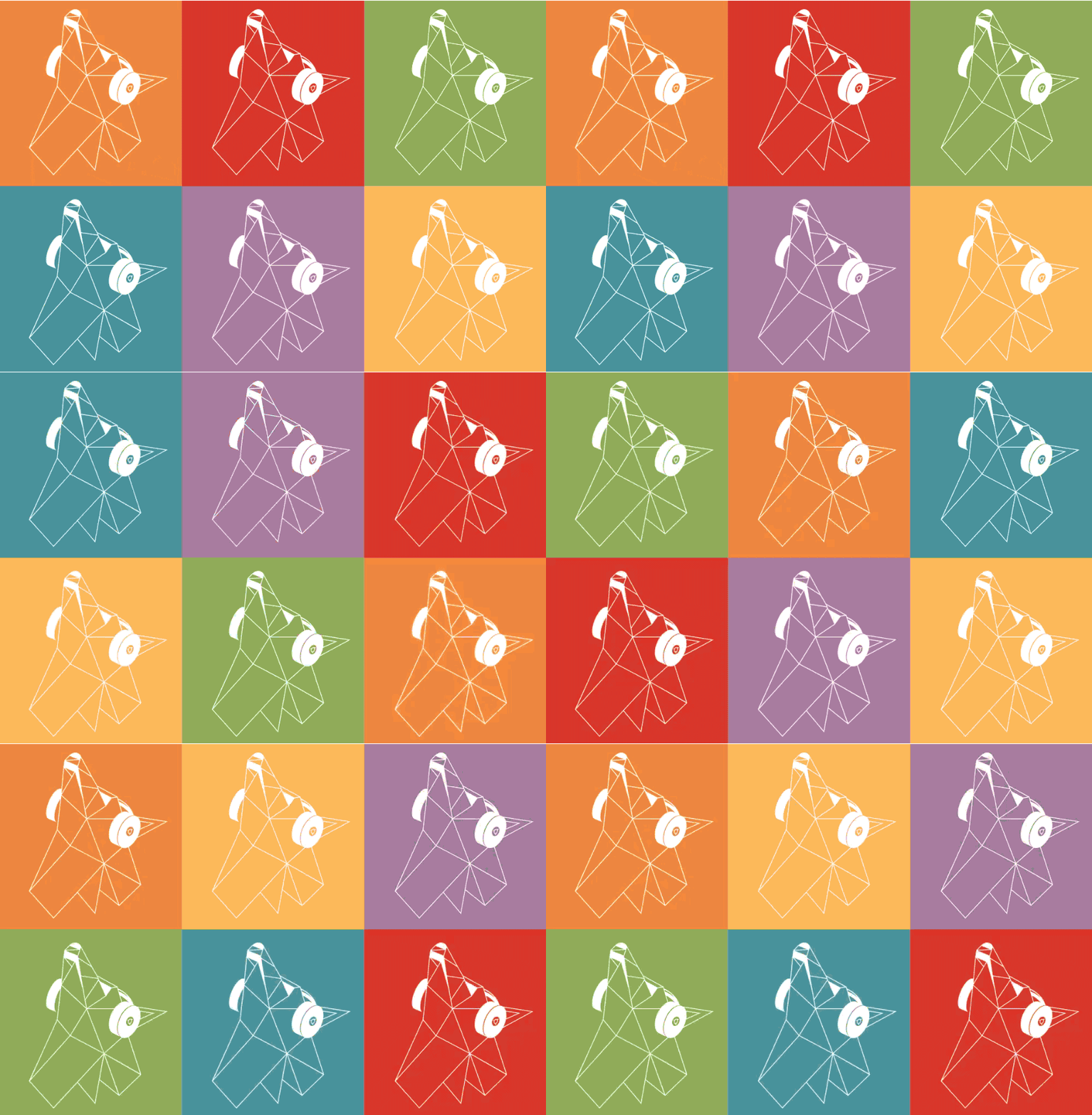
GIFs speaks louder that words. Meet the official "Disco Dingo" mascot.


Pretty awesome, right? "Disco Dingo" mascot calls for infinite wallpaper variations.

4. The New Default Wallpaper

The new "Disco Dingo" themed wallpaper is so sweet: very Ubuntu-ish yet unique. A gray scale version of the same wallpaper is a system default too.

ubuntu 19.04 disco dingo features

UPDATE: There's a entire suit of newer and better wallpapers on Ubuntu 19.04!

5. Linux Kernel 5.0 Support

Ubuntu 19.04 "Disco Dingo" will officially support the recently released Linux Kernel version 5.0. Among other things, Linux Kernel 5.0 comes with AMD FreeSync display support which is awesome news to users of high-end AMD Radeon graphics cards.

ubuntu 19.04 features

Also important to note is the added support for Adiantum Data Encryption and Raspberry Pi touchscreens. Apart from that, Kernel 5.0 has regular CPU performance improvements and improved hardware support.

6. Livepatch is ON

Ubuntu 19.04's 'Software and Updates' app has a new default tab called Livepatch. This new feature should ideally help you to apply critical kernel patches without rebooting.

Livepatch may not mean much to a normal user who regularly powerdowns his or her computer, but can be very useful for enterprise users where any downtime is simply not acceptable.

ubuntu 19.04 updates

Canonical introduced this feature in Ubuntu 18.04 LTS, but was later removed when Ubuntu 18.10 was released. The Livepatch feature is disabled on my Ubuntu 19.04 installation though, with a "Livepatch is not available for this system" warning. Not exactly sure what that means. Will update.

7. Ubuntu 19.04 Release Schedule

The beta freeze is scheduled to happen on March 28th and final release on April 18th.

ubuntu 19.04 what's new

Normally, post the beta release, it is a safe to install Ubuntu 19.04 for normal everyday use in my opinion, but ONLY if you are inclined to give it a spin before everyone else of course. I'd never recommend a pre-release OS on production machines. Ubuntu 19.04 Daily Build Download.


My biggest disappointment though is the supposed Ubuntu Software Center revamp which is now confirmed to not make it to this release. Subscribe us on Twitter and Facebook for more Ubuntu 19.04 release updates.

ubuntu 19.04 disco dingo

Recommended read: Top things to do after installing Ubuntu 19.04
Have been using "Cosmic Cuttlefish" since its first beta. It is perhaps one of the most visually pleasing Ubuntu releases ever. But more on that later. Now let's discuss what can be done to improve the overall user-experience by diving deep into the nitty gritties of Canonical's brand new flagship OS.

1. Enable MP3/MP4/AVI Playback, Adobe Flash etc.

This has been perhaps the standard 'first-thing-to-do' ever since the Ubuntu age dawned on us. You do have an option to install most of the 'restricted-extras' while installing the OS itself now, but if you are not-sure you've ticked all the right boxes, just run the following command in Terminal.

sudo apt install ubuntu-restricted-extras

OR

You can install it straight from the Ubuntu Software Center by CLICKING HERE.

2. Get GNOME Tweaks

GNOME Tweaks is non-negotiable.

things to do after installing ubuntu 18.10

GNOME Tweaks is an app the lets you tweak little things in GNOME based OSes that are otherwise hidden behind menus. If you are on Ubuntu 18.10, Tweaks is a must. Honestly, I don't remember if it was installed as a default. But here you install it anyway, Apt-URL will prompt you if the app already exists.


Search for Gnome Tweaks in Ubuntu Software Center. OR simply CLICK HERE to go straight to the app in Software Center. OR even better, copy-paste this command in Terminal (keyboard shortcut: CTRL+ALT+T).

sudo apt install gnome-tweaks

3. Displaying Date/Battery Percentage on Top Panel  

The screenshot, I hope, is self explanatory.

things to do after installing ubuntu 18.10

If you have GNOME Tweaks installed, this is easily done. Open GNOME tweaks, goto 'Top Bar' sidemenu and enable/disable what you need.

4. Enable 'Click to Minimize' on Ubuntu Dock

Honestly, I don't have a clue why this is disabled by default. You intuitively expect the apps shortcuts on Ubuntu dock to 'minimize' when you click on it (at least I do).

In fact, the feature is already there, all you need to do is to switch it ON. Do this is Terminal.

gsettings set org.gnome.shell.extensions.dash-to-dock click-action 'minimize'

That's it. Now if you didn't find the 'click to minimize' feature useful, you can always revert Dock settings back to its original state, by copy-pasting the following command in Terminal app.

gsettings reset org.gnome.shell.extensions.dash-to-dock click-action

5. Pin/Unpin Useful Stuff from Launcher

There are a bunch of apps that are pinned to your Ubuntu launcher by default.

things to do after ubuntu 18.10
 
For example, I almost never use the 'Help' app or the 'Amazon' shortcut preloaded on launcher. But I would prefer a shortcut to Terminal app instead. Right-click on your preferred app on the launcher, and add-to/remove-from favorites as you please.

6. Enable/Disable Two Finger Scrolling

As you must've noticed, two-finger scrolling is a system default now. 

things to do after installing ubuntu cosmic
 
One of my laptops act strangely when two-finger scrolling is on. You can easily disable two-finger scrolling and enable old school edge-scrolling in 'Settings'.  Settings > Mouse and Touchpad

Quicktip: You can go straight to submenus by simply searching for it in GNOME's universal search bar.

ubuntu 18.10 cosmic

Take for example the screenshot above, where I triggered the GNOME menu by hitting Super(Windows) key, and simply searched for 'mouse' settings. The first result will take me directly to the 'Settings' submenu for 'Mouse and Touchpad' that we saw earlier. Easy right? More examples will follow.

7. Nightlight Mode ON

When you're glued to your laptop/PC screen for a large amount of time everyday, it is advisable that you enable the automatic nightlight mode for the sake of your eyes. Be it the laptop or my phone, this has become an essential feature. The sight of a LED display without nightlight ON during lowlight conditions immediately gives me a headache these days. Easily one of my favourite in-built features on GNOME.


Settings > Devices > Display > Night Light ON/OFF

things to do after installing ubuntu 18.10

OR as before, Hit superkey > search for 'night light'. It will take you straight to the submenu under Devices > Display. Guess you wouldn't need anymore examples on that.

things to do after installing ubuntu 18.10

8. Safe Eyes App for Ubuntu

A popup that will fill the entire screen and forces you to take your eyes off it.

apps for ubuntu 18.10

Apart from enabling the nighlight mode, Safe Eyes is another app I strongly recommend to those who stare at their laptops for long periods of time. This nifty little app forces you to take your eyes off the computer screen and do some standard eye-exercises at regular intervals (which you can change).

things to do after installing ubuntu 18.10

Installation is pretty straight forward. Just these 3 commands on your Terminal.

sudo add-apt-repository ppa:slgobinath/safeeyes
sudo apt update 
sudo apt install safeeyes 

9. Privacy on Ubuntu 18.10

Guess I don't need to lecture you on the importance of privacy in the post-PRISM era.

ubuntu 18.10 privacy

Ubuntu remembers your usage & history to recommend you frequently used apps and such. And this is never shared over the network. But if you're not comfortable with this, you can always disable and delete your usage history on Ubuntu. Settings > Privacy > Usage & History 

10. Perhaps a New Look & Feel?

As you might have noticed, I'm not using the default Ubuntu theme here.

themes ubuntu 18.10

Right now I'm using System 76's Pop OS GTK theme and icon sets. They look pretty neat I think. Just three commands to install it in your Ubuntu 18.10.

sudo add-apt-repository ppa:system76/pop
sudo apt-get update 
sudo apt install pop-icon-theme pop-gtk-theme pop-gnome-shell-theme 
sudo apt install pop-wallpapers 

Execute last command if you want Pop OS wallpapers as well. To enable the newly installed theme and icon sets, launch GNOME Tweaks > Appearance (see screenshot). I will be making separate posts on themes, icon sets and GNOME shell extensions. So stay subscribed. 

11. Disable Error Reporting

If you find the "application closed unexpectedly" popups annoying, and would like to disable error reporting altogether, this is what you need to do.

sudo gedit /etc/default/apport

This will open up a text editor window which has only one entry: "enabled=1". Change the value to '0' (zero) and you have Apport error reporting completely disabled.


Follow us on Facebook, and Twitter
From the most consumer focused distros like Ubuntu, Fedora, Mint or elementary OS to the more obscure, minimal and enterprise focused ones such as Slackware, Arch, openSUSE or RHEL, I thought I've seen them all.

Linux eco-system is extremely diverse. There's one for everyone, for every use-case imaginable. And then there are those which are straight up nonsensical. Let's discuss the weird and wacky world of niche Linux distros that represents the true diversity of open platforms.


Puppy Linux: An operating system which is about 1/10th the size of an average DVD quality movie, that's Puppy Linux for you. The OS is just 100 MB in size! And it can run from RAM making it unusually fast even in older PCs.

strangest linux distros

You can even remove the boot medium after the operating system has started! Can it get any better than that? System requirements are bare minimum, most hardware are automatically detected, and it comes loaded with software catering to your basic needs. Experience Puppy Linux.

Suicide Linux: Did the name scare you? Well it should. 

suicide linux

Any time - any time - you type anything remotely incorrect into your command-line, the interpreter creatively resolves it into rm -rf / and wipes your hard drive. Simple as that. I'm pretty sure no one here is stupid enough to risk their production machines with Suicide Linux. But here's the official warning anyway: DO NOT try this on production machines! The whole thing is available in a neat DEB package if you're interested.

PapyrOS: "Strange" in a good way. 

top 10 strangest linux distros

PapyrOS is trying to adapt the material design language of Android into their brand new Linux distribution. Though the project is in early stages, it already looks very promising. The project page says the OS is 80% complete and one can expect the first Alpha release anytime soon. We did a small write up on PapyrOS when it was announced and by the looks of it, PapyrOS might even become a trend-setter of sorts. Follow the project on Google+ and contribute via BountySource if you're interested. 2019 Update: Project seems to have lost steam.

Qubes OSQubes is an open-source operating system designed to provide strong security using a Security by Compartmentalization approach. 

10 most unique linux distros

The assumption is that there can be no perfect, bug-free desktop environment. And by implementing a 'Security by Isolation' approach, Qubes Linux intends to remedy that. Qubes is based on Xen, the X Window System, and Linux, and can run most Linux applications and supports most Linux drivers. Qubes was selected as a finalist of Access Innovation Prize 2014 for Endpoint Security Solution.

Ubuntu Satanic EditionUbuntu SE is a Linux distribution based on Ubuntu.

top10 linux distros

"It brings together the best of free software and free metal music" in one comprehensive package consisting of themes, wallpapers, and even some heavy-metal music sourced from talented new artists. Project doesn't look actively developed anymore. Ubuntu SE (Slightly NSFW).

Tiny Core Linux: Puppy Linux not small enough? Look no further.

10 strange linux distros

Tiny Core Linux is a 12 MB graphical Linux desktop! Yep, you read it right. One major caveat: It is not a complete desktop nor is all hardware completely supported. It represents only the core needed to boot into a very minimal X desktop typically with wired internet access. There is even a version without the GUI called Micro Core Linux which is just 9MB in size. Tiny Core Linux folks.

NixOS: A very experienced-user focused Linux distribution with a unique approach to package management. 

top 10 unique and special linux distros

In other distributions, actions such as upgrades can be dangerous. Upgrading a package can cause other packages to break, upgrading an entire system is much less reliable than reinstalling from scratch. And top of all that you can't safely test what the results of a configuration change will be, there's no "Undo" so to speak.


In NixOS, the entire operating system is built by the Nix package manager from a description in a purely functional build language. This means that building a new configuration cannot overwrite previous configurations. Most of the other features follow this pattern. Nix stores all packages in isolation from each other. More about NixOS.

GoboLinux: This one has a unique file system hierarachy.

strangest linux distros

What makes GoboLinux so different from the rest is its unique re-arrangement of traditional Linux filesystem. It has its own subdirectory tree, where all of its files and programs are stored. GoboLinux does not have a package database because the filesystem is its database.

In some ways, this sort of arrangement is similar to that seen in OS X. Get GoboLinux.

Hannah Montana Linux: lol WUT?

strangest linux distros

Exactly. This is a Linux distro based on Kubuntu with a Hannah Montana themed boot screen, KDM, icon set, ksplash, plasma, color scheme, and wallpapers (I'm so sorry). Link. Project not active anymore.

RLSD LinuxAn extremely minimalistic, small, lightweight and security-hardened, text-based operating system built on Linux. "It's a unique distribution that provides a selection of console applications and home-grown security features which might appeal to hackers," developers claim. RLSD Linux.

Did we miss anything even stranger? Let us know in the comments.
Ubuntu has touched the lives of many among us in different ways. I can't speak for everyone here and hence I will share a few of my experiences with Ubuntu. For me, Ubuntu was the gateway to Linux and to the whole open source way of thinking. Ubuntu taught me that computers are not all about Windows OS and that there are far better alternatives than the "default" Windows desktop which you have been made to see and learn from a younger age. Lets go back in time and see how Ubuntu evolved over the years to become what it is now - a totally awesome, user-friendly and fast changing Linux based distro for 'human beings'.

A Brief History of Ubuntu
A new version of Ubuntu is released every 6 months like clockwork, and as of Oct 2015, a grand total of 23 stable releases has been delivered. Each release also has a specific code name which are made using an adjective and an animal with the same first letter (e.g. Hardy Heron, Wily Werewolf). We will do a brief overview of each one of them below. A walk back through the history of Ubuntu. Read on.

Ubuntu 4.10 (Warty Warthog)

evolution of Ubuntu

Ubuntu 4.10 codenamed "Warty Warthog" marked the beginning of a new kid in the block, the first and foremost release of Ubuntu by Canonical foundation. This new Linux distro was based on Debian and aimed at giving new users a trouble free experience of Linux. This release also crucially brought the Ubuntu shipit feature where by users could get Ubuntu installation CD's mailed to their homes for free through a simple signup. Shipit was one of those key USPs that made Ubuntu a very popular choice among youngsters in those early days. I think I still have several lying around near my old PC. And who can forget those Ubuntu branded stickers!

Ubuntu 5.04 (Hoary Hedgehog)

Ubuntu History complete

Ubuntu 5.04 codenamed "Hoary Hedgehog" was released on 8 April 2005. From this second release onwards, massive changes started to trickle in. Ubuntu 5.04 added many new features including an update manager, upgrade notifier, readahead and grepmap, suspend, hibernate and standby support, dynamic frequency scaling for processors among many other major improvements. Ubuntu 5.04 was so ahead of its time that it even introduced support for installation from USB devices. 

Ubuntu 5.10 (Breezy Badger)

ubuntu history 2015 edition

Ubuntu 5.10 codenamed "Breezy Badger" was released on 12 October 2005, the third stable release of Ubuntu by Canonical. Ubuntu 5.10 added several new features including a graphical bootloader (Usplash), an Add/Remove Applications tool, a menu editor, an easy language selector, crucial logical volume management support, full Hewlett-Packard printer support, OEM installer support among others. More importantly, this release also brought in Launchpad integration for bug reporting and software development.

Ubuntu 6.06 LTS (Dapper Drake)

ubuntu history

Ubuntu 6.06 LTS codenamed "Dapper Drake" was released on 1 June 2006. It was also the first Long Term Support(LTS) release. This was also the only time when the Ubuntu release cycle was slightly pushed forward by 2 months owing to all sorts of delays. Many new features were introduced including having the Live CD and Install CD merged onto one disc, a graphical installer on Live CD, a network manager for easy switching of multiple wired and wireless connections, implementation of Humanlooks theme among other improvements.

Ubuntu 6.10 (Edgy Eft)

walk back through the history of ubuntu

Ubuntu 6.10 codenamed "Edgy Eft" was released on 26 October 2006, Canonical's fifth Ubuntu release. Tomboy, F-Spot became new defaults. Human theme also went through heavy modifications.

Ubuntu 7.04 (Feisty Fawn)

travel through the history of ubuntu

Ubuntu 7.04 codenamed "Feisty Fawn" was released on 19 April 2007. This release had a very special significance for me. Feisty was my first real Linux experience. I was a complete noob to the whole Linux way of life then and barely installed Ubuntu in my laptop with the help of friends and Ubuntu Forums. And to be frank, the primary reason for me trying out Ubuntu was Compiz and all the bling that came with it. In those clogged XP-Vista days, Compiz was (and it still is in many ways) a breath of fresh air.

Ubuntu 7.10 (Gutsy Gibbon)

ubuntu history

Ubuntu 7.10 codenamed "Gutsy Gibbon" released on 18 October 2007. Ubuntu 7.10 introduced Compiz Fusion as a default feature. This seventh release of Ubuntu also marked the introduction of full NTFS support.

Ubuntu 8.04 LTS (Hardy Heron)

history of ubuntu

Ubuntu 8.04 codenamed "Hardy Heron" was released on 24 April 2008. This was the second LTS version of Ubuntu. In my opinion, this release had one of the best designed Ubuntu wallpaper as default. Brasero disc burner and transmission bit torrent client were introduced during this release. Controversial Pulse Audio became the new default system sound server. This release also introduced Wubi installer using which you can install Ubuntu inside Windows without repartitioning the disk.

Ubuntu 8.10 (Intrepid Ibex)

ubuntu history revisited

Ubuntu 8.10 codenamed Intrepid Ibex was released on 30 October 2008. It was the ninth Ubuntu release and it was also one of my favorite releases. This release introduced useful Ubuntu Live USB creator application. Guest session functionality was also introduced during Intrepid Ibex release.

Ubuntu 9.04 (Jaunty Jackalope)

ubuntu history

Ubuntu 9.04 "Jaunty Jackalope" was released on 23 April 2009. This release marked the first time that all of Ubuntu's core development moved to the Bazaar distributed revision control system which is designed to make it easier for anyone to contribute to free and open source software projects. Faster boot time was another major achievement of this release.

Ubuntu 9.10 (Karmic Koala)

evolution of ubuntu

Ubuntu 9.10 codenamed "Karmic Koala" released on 29 October 2009. From this release onwards, Ubuntu slowly started to shift gears. A slew of changes started to flood Ubuntu. During Ubuntu Karmic's release cycle, Canonical introduced the One Hundred Paper Cuts project, focusing developers to fix minor usability issues. This was a major move and it helped bring a lot of polish for Ubuntu in the latter releases. This release also introduced Ubuntu Software Center.

Ubuntu 10.04 LTS (Lucid Lynx)

a brief history of ubuntu

Ubuntu 10.04 codenamed "Lucid Lynx" was released on 29 April 2010. Ubuntu 10.04 "Lucid Lynx" is my favorite release to date and it brought about the biggest amount of changes ever. Ubuntu had a complete branding makeover during this release cycle. Even the brown theme was ditched for the first time for a more bright and pleasant looking "Light" inspired theme. Changes Ubuntu 10.04 Lucid Lynx went through.

Ubuntu 10.10 (Maverick Meerkat)

ubuntu history

Ubuntu 10.10 codenamed "Maverick Meerkat" was released on 10 October 2010 (10.10.10) at around 10:10 UTC. Close to the heels of Ubuntu Lucid release, Ubuntu Maverick was also packed with new features and improvements. Ubuntu Software Center became one of the applications that received maximum amount of attention. Canonical's attention to detail started showing up big time during Ubuntu 10.10 release cycle.

Ubuntu 11.04 (Natty Narwhal)

11 years of ubuntu history

Ubuntu 11.04 "Natty Narwhal" was perhaps *the* most controversial Ubuntu release ever. Canonical introduced Unity shell with Ubuntu 11.04 which created quite a furore among its vast user base. Unity was Ubuntu's answer to GNOME 3.0's GNOME Shell desktop, though Ubuntu 11.04 was still based on previous GNOME 2.x.

Reactions from users was not really what Canonical would have hoped for. Unity was far less customisable when compared to earlier versions and that was simply unacceptable to many long-term Ubuntu users.

Ubuntu 11.10 (Oneiric Ocelot)

history of ubuntu

Ubuntu 11.10 codenamed "Oneiric Ocelot" was the first GNOME 3.0 based Ubuntu release. Oneiric did not brought in sweeping changes like its predecessor did. But it does brought in a lot of polish to the controversial Unity UI. LightDM replaced GDM as Ubuntu's new default login screen. Classic Gnome Desktop was completely ditched in favor of Unity 2D during this release cycle. A quick screenshot tour of Ubuntu 11.10 Oneiric Ocelot.

Ubuntu 12.04 LTS (Precise Pangolin)

ubuntu history

Quicklists was introduced as a default feature for the very first time. Apart from the usual three Unity lenses (Applications, Files and Music), there is an additional Video lens too which lets you select and play videos from a variety of sources ranging from your local collection to YouTube Movies, BBC iPlayer and TED Talks to name a few. HUD became fully operational. Default launcher behavior is set to "always visible" instead of "dodge windows". Rhythmbox is back again replacing Banshee as the default music player. Changes in Ubuntu 12.04 LTS.

Ubuntu 12.10 (Quanty Quetzal)

ubuntu history

Like most previous *.10 releases, Ubuntu 12.10 became the testing ground for a barrage of new features. We listed a grand total of 23 improvements/changes in Ubuntu 12.10, which is pretty staggering at any count. Improvements to LightDM based login screen, remote login facility, Unity Dash price ribbons, Local Apps filter, Launcher improvements, a new dedicated Ubuntu One Music app, and more privacy with the introduction of ON/OFF switch for online search results withing Unity Dash. Ubuntu 12.10 had its share of controversies also. For example, the introduction of Amazon shopping lens as default riled up many.

Ubuntu 13.04 (Raring Ringtail)


Though Unity was improved leaps and bounds by now, it lacked the polishness and finesse it deserved. With the help of recently joined designer known for his gorgeous works including Faenza theme, Ubuntu 13.04 look and feel got some much needed attention. The new shutdown menu and core app icons were a class apart. The new "spinning" Unity dash icon and Software Updater icon set benchmarks in branding. Also, Wubi installer was dropped during this release owing to compatibility issues with Windows 8. And more importantly, it was decided that non-LTS Ubuntu releases will see their support periods halved (9 months instead of 18) from Ubuntu 13.04 onwards. Go through the list of visual changes in Ubuntu 13.04.

Ubuntu 13.10 (Saucy Salamander)

history of ubuntu

With Unity maturing, updates became more minor in nature. There were talks about replacing Firefox with Chromium as default web browser for Ubuntu, but it never materialised. There were also talks about replacing aging X11 with XMir display server and then go on to completely replace X session by Ubuntu 14.04 LTS. But XMir still remains a work in progress.

Ubuntu 14.04 LTS (Trusty Tahr)

ubuntu complete history

Unity 7 was really starting to feel more "middle-aged" with every passing release. More incremental updates than sweeping changes showed signs of maturity. But even then, the ability to turn off the global menu and the arrival of Local Integrated Menus were welcome additions. Click to Minimize became available through a CCSM update. X11 was retained and XMir adoption pushed even further. Ubuntu 14.04 LTS was a largely uneventful LTS release, which can be a good thing in my opinion. Everything just worked.

Ubuntu 14.10 (Utopic Unicorn)

11 years of ubuntu history

Ubuntu 14.10 was supposed to be rock solid released release with incremental updates. And it was, for many. But for me, this one was a pretty eventful release. Weirdly, I faced a lot of teething issues with Ubuntu 14.10 so much that I had to replace Ubuntu with elementary OS as my daily work horse for the first time (not that I'm complaining). Netflix started working out of the box, which was a big positive. This was also the release cycle during which Canonical seriously devoted resources into its mobile platform and work on Unity 8 was acquiring some serious momentum. Here's our compilation of things to do after installing Ubuntu 14.10.

Ubuntu 15.04 (Vivid Vervet)

ubuntu history revisited

With the arrival of Ubuntu 15.04, things were back to normal for me. Ubuntu was working just as good as ever, thanks to "Vivid Vervet". This was also the release when Upstart was finally dropped in favour of systemd. There were also improvements to Intel Haswell and AMD Radeon graphics performance. Visual changes? Not so much. Oh and don't forget to read our top things to do after installing Ubuntu 15.04 compilation.

Ubuntu 15.10 (Wily Werewolf)

history of ubuntu desktop

Ubuntu 15.10 was released just yesterday without much fanfare. With works on Unity 8 improving at a rapid pace, Canonical is finding less and less reasons to spend time on adding features and functionalities on Unity 7 based Ubuntu 15.10 "Wily Werewolf". Ubuntu Touch OS meant for mobile platforms got a lot of attention, yet again, which is now capable of receiving instant over the air updates. Mir display server was also supposed to be there as default, but its release has been pushed further. Visually, the biggest change is the removal of disappearing window edge scrollbars (something I really liked) in favour of the upstream GNOME scrollbars. Underneath, there are not much changes, except for the updated Kernel. Very stable and reliable OS though, have been using it since the arrival of first beta. Download here.

Next in Line: Ubuntu 16.04 LTS "Xenial Xerus"

This could turn out to be the most important Ubuntu release since the arrival of Unity, if not forever. To be released on 21 April 2016, Ubuntu 16.04 LTS is expected to include Unity 8 running natively on Mir. I can't wait!

[Thanks to Wikipedia for screenshots of earlier versions of Ubuntu. And thank you for reading.]